

Browse — find the ideal starting time#
A time-course of plate scans is hard to skim one image at a time. The
Timeline view of the Browse tab lays every source image out as a matrix
— one row per plate (or folder / metadata group), one column per timepoint —
so you can step across a single plate’s growth, compare plates side by side,
and zoom into any one frame without leaving the page.
It builds on the single-image Browse viewer: same shared source root, same vendored OpenSeadragon deep-zoom, same ephemeral tile cache. The Timeline adds a folder/EXIF filmstrip by default, an optional per-axis source picker, token-keyed cached thumbnails, and a keyboard-driven focus-and-navigate matrix.
Step 1 - Switch Browse to Timeline mode#
Open the Browse tab, set a source root from the top bar (see
Browse source images if you have not yet), then flip the
Single ∣ Timeline toggle in the Browse header to Timeline:
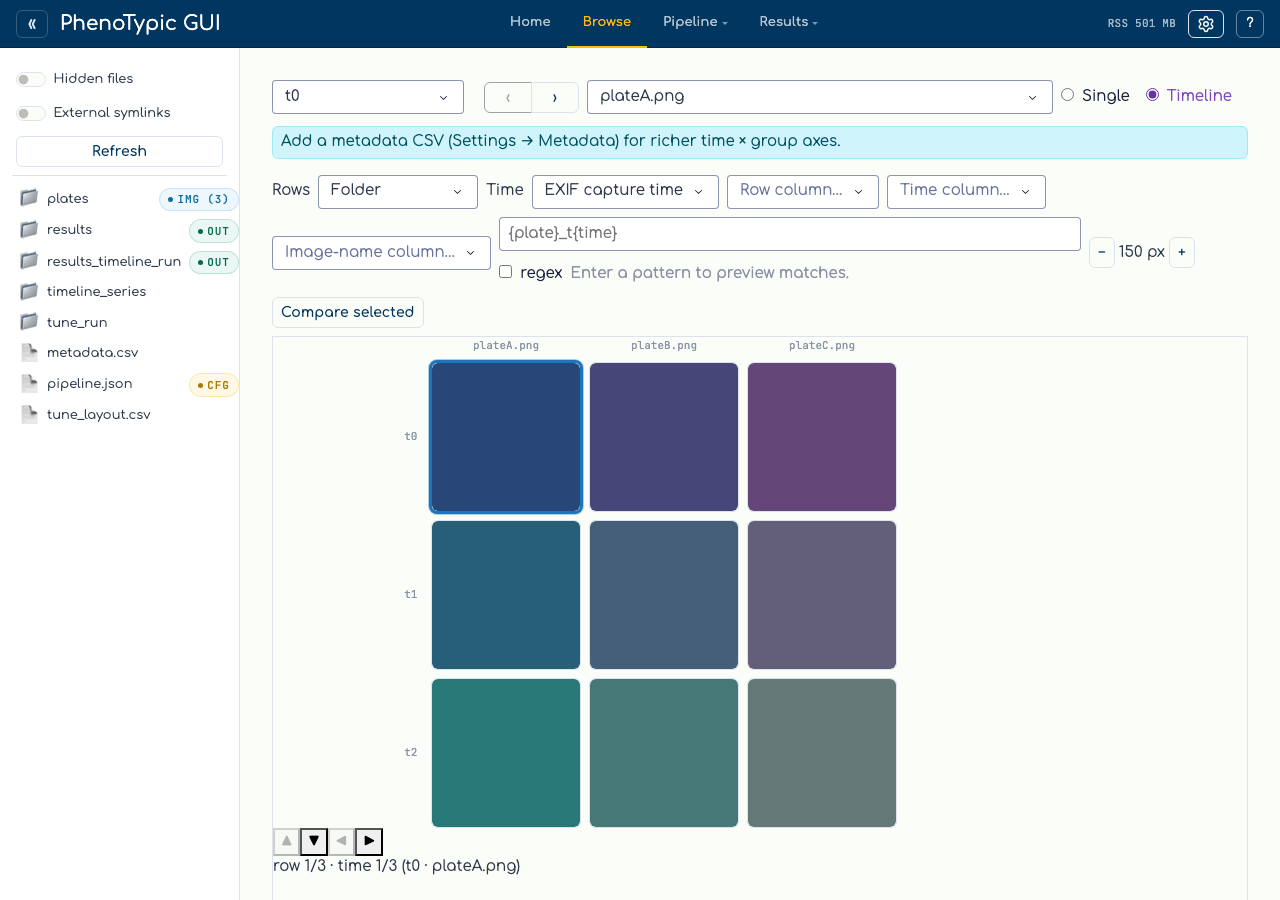
By default the matrix uses the folder as the row axis and EXIF capture time as the time axis — a folder/EXIF filmstrip that needs no configuration. Capture time is read straight from each file’s EXIF block (no full-image decode), so even hundreds of source images lay out quickly.
Step 2 - Choose what drives each axis (optional)#
Two source selectors let you upgrade the default filmstrip:
Row source —
folder(default), a{plate}pattern over the filename stems, or a metadata-CSV column.Time source —
exif(default), a{time}pattern, or a metadata-CSV column.
When you pick pattern, type a placeholder pattern such as
{plate}_t{time} (with * wildcards and literal text). The compiled pattern
extracts a plate identity and a time from each filename stem; an
advanced-regex toggle switches the input to a raw regular expression
requiring a named (?P<plate>…) group. A live pattern preview shows the
per-stem captures so a mistyped pattern is visible before the matrix renders.
Pattern rows stay folder-scoped — the same {plate} in two different
folders is two separate rows.
When you pick csv, dropdowns choose the image-stem join column and the row/time value columns. The CSV joins folder-scoped by image stem (no path column), and a banner warns if a stem appears in more than one folder and so cannot be disambiguated. If no CSV is bound, a small nudge banner points you at the richer source picker.
Step 4 - Deep-zoom a single frame#
To inspect one frame at full resolution, open the deep-zoom pop-out:
Press Enter (or Space) on the focused cell, or
hover any visible tile and click the revealed ⤢ button.
Either path opens the same pop-out modal and mounts an OpenSeadragon viewer that reuses the browse DZI deep-zoom route, so zoom and pan are GPU-smooth. Close the modal to return to the matrix with your focus unchanged.
Note
Thumbnails are token-keyed and cached under the same ephemeral
tempfile.gettempdir()/phenotypic/browse tree as the single-view tiles
(in a thumb/ sub-cache), wiped each session. RAW that cannot be decoded on
the current platform surfaces an inline notice rather than a broken tile.
Where to next#
Browse source images — the single-image deep-zoom viewer the Timeline builds on.
Build a Pipeline — once you have picked a starting time, compose the pipeline that will process the run.