

Fill aux op params#
Some operations accept another operation as a constructor parameter. For
example, FilamentousFungiDetector.inoculum_detector can take an
ObjectDetector or an ImagePipeline. The linear builder surfaces those
parameters as gold port buttons on the node card and in the side loader.
The default flow is click-only:
Select the consumer node.
Click the parameter port in the side loader.
Click a compatible operation in the palette.
The aux source is stored in the internal DAG state as a hidden side value. It is not placed as a movable node on the main map.
Step 1 - Empty canvas#
Open the Builder tab, or navigate to /builder/:
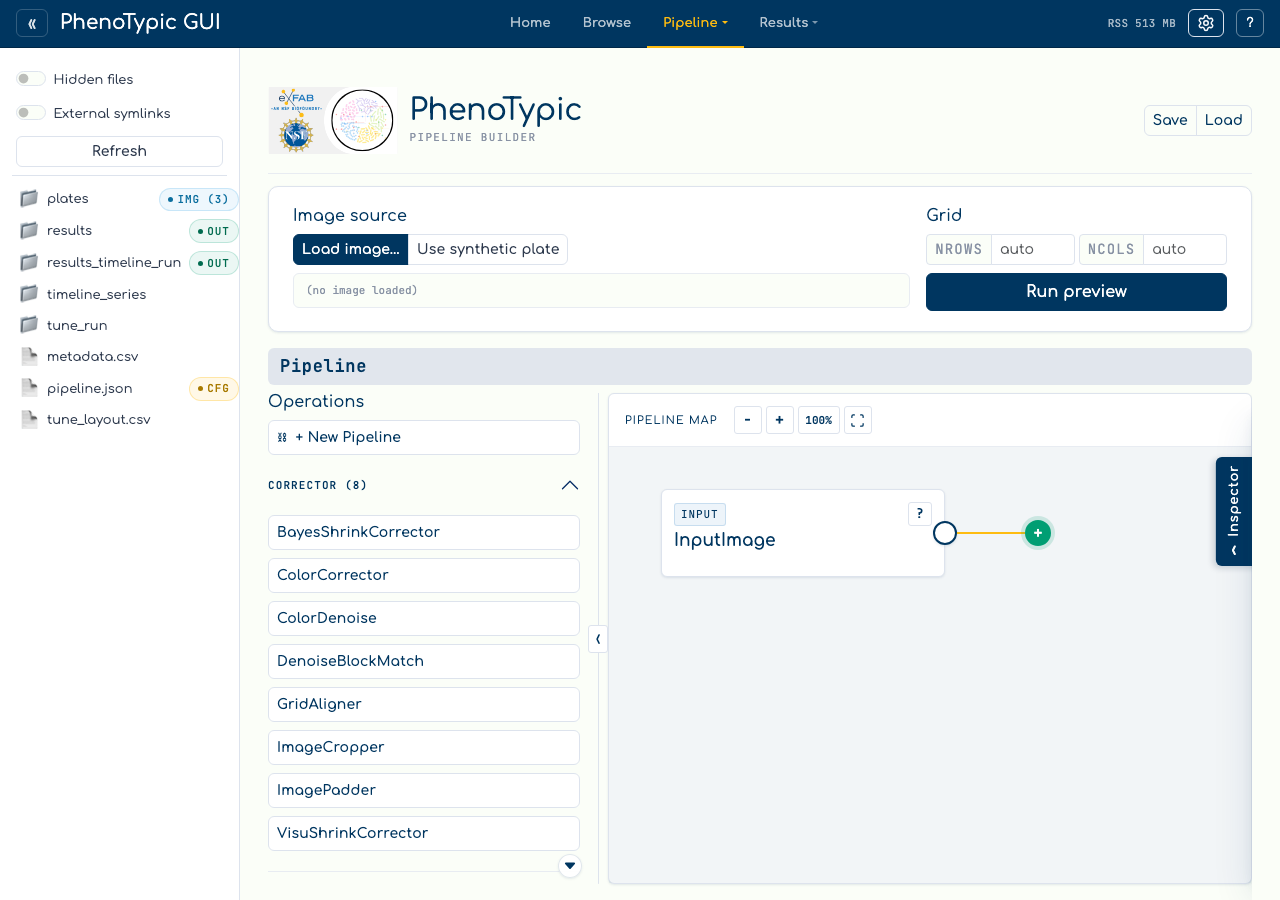
Every scope starts with one InputImage source and a floating continuation
target. No side-value rows appear until you select a node with operation-typed
parameters.
Step 2 - Add the main pipeline#
Click BlurGauss, then FilamentousFungiDetector. Each palette click adds
to the current green continuation target, so the main chain becomes
InputImage -> BlurGauss -> FilamentousFungiDetector.
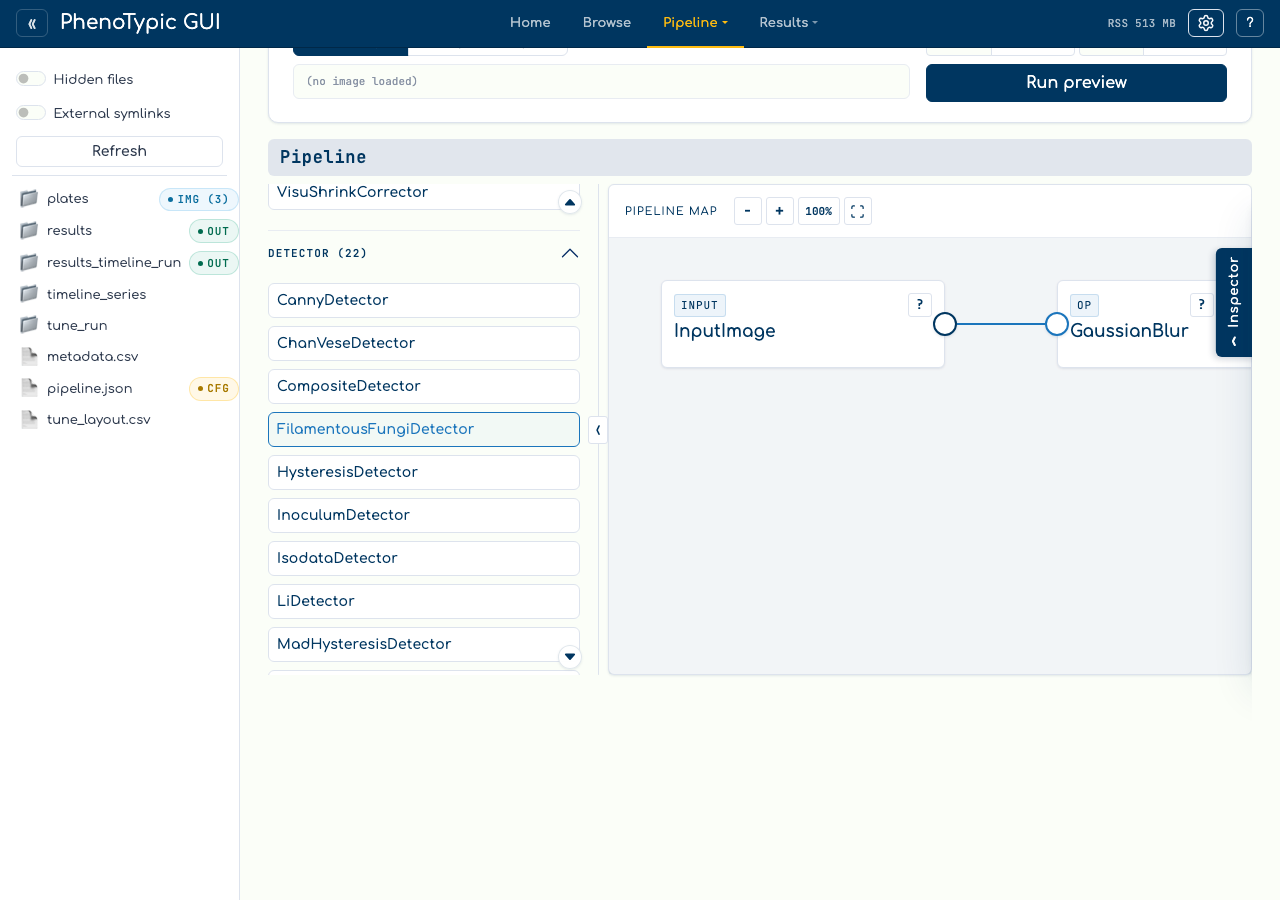
FilamentousFungiDetector exposes the required inoculum_detector side value.
While it is empty, the validation badge reports a blocking issue and global
preview/save stay disabled.
Step 3 - Fill the side value#
In the side loader, click the gold port button beside inoculum_detector. The
active target strip updates and the selected port turns green. Then click
OtsuDetector in the palette.
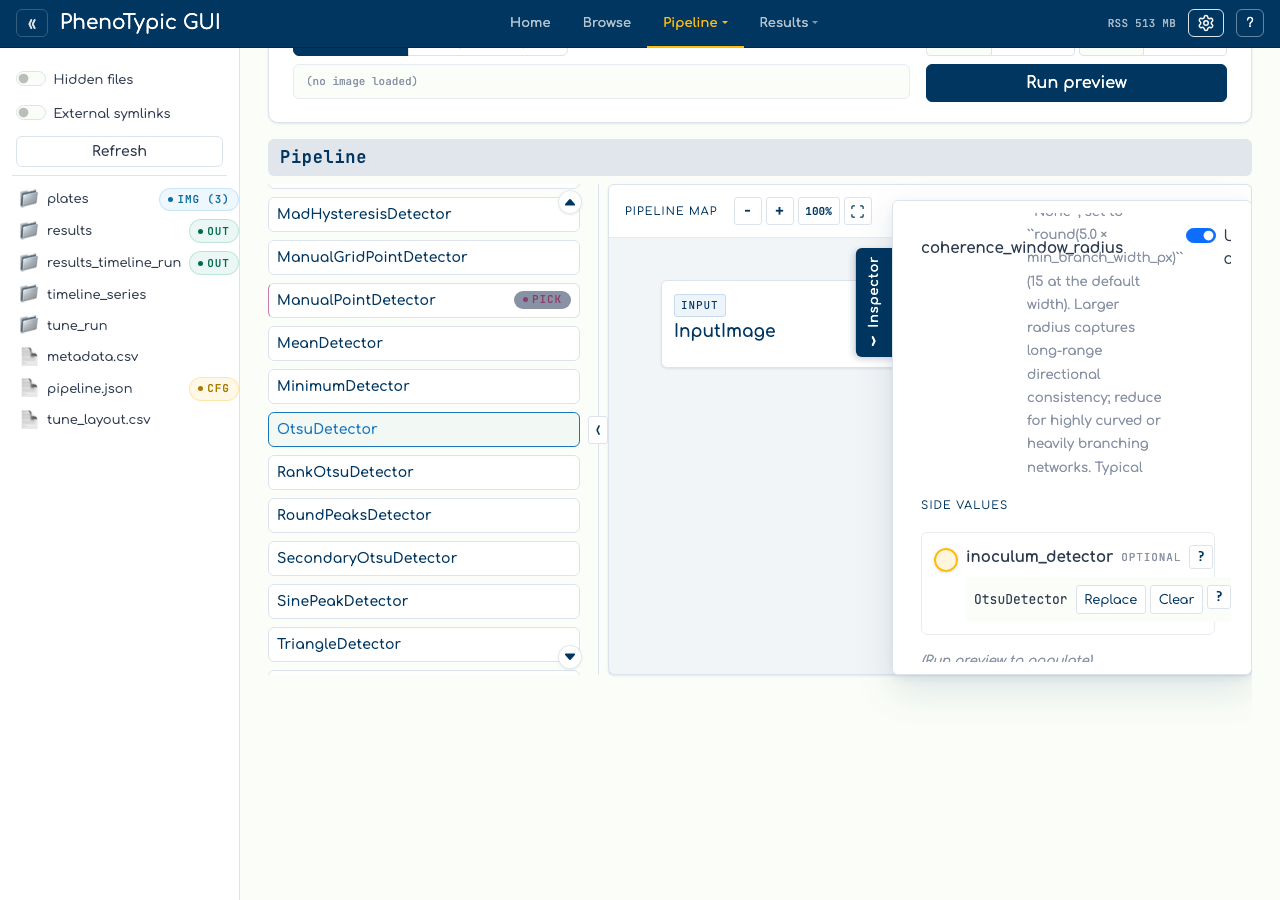
The side value row now shows OtsuDetector with Replace, Clear, and ?
actions. Replacing follows the same pattern: click Replace, then click a
compatible palette operation.
Step 4 - Inspect the consumer#
Select FilamentousFungiDetector again to inspect the filled consumer:
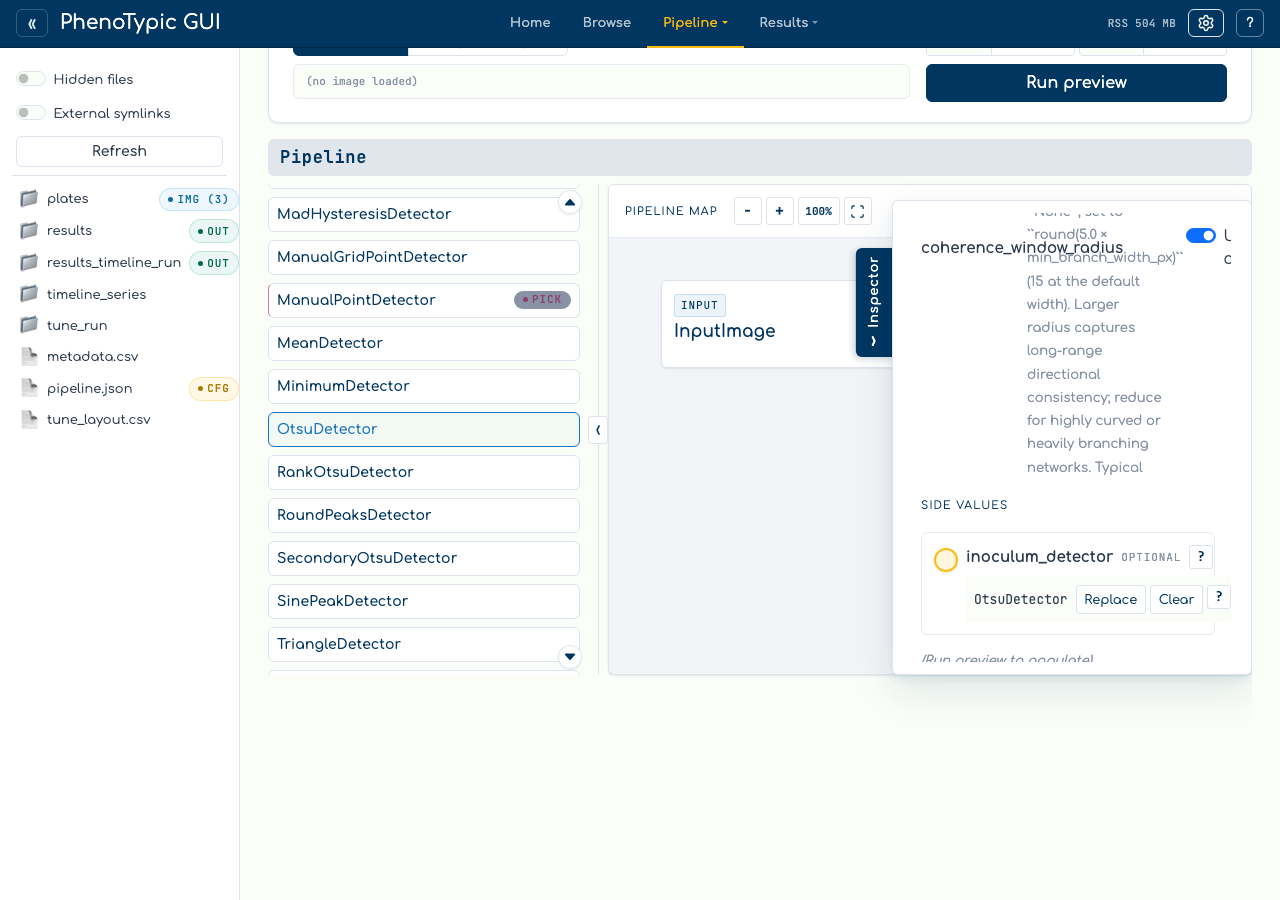
Scalar fields for the selected node remain editable above Side values.
Operation-valued parameters stay in the side-value section with their own
left-aligned port buttons and value-row actions.
Reference#
Gold parameter port - selects a side-value target.
Green selected target - the next palette click will add or fill here.
Filled value row - hidden aux value with
Replace,Clear, and help actions.Embedded pipeline value - use
+ New Pipelinewhile a side target is selected, then edit the nested scope through breadcrumbs.List-typed side values - compatible values append to the next compact slot; clearing or replacing a slot compacts the list so there are no empty gaps.
Where to next#
Build a Pipeline - the basics of the main image-flow chain.
Fill a scalar aux target - a focused version of this flow with the green target highlighted.
Open an embedded Pipeline aux - fill a side value with a nested
ImagePipeline.