
Build a Pipeline#
The Builder authors ImagePipeline JSON through a fixed linear port map. The
underlying state still round-trips through the DAG model, but the default UI is
click-only: operations are added at the green target, node cards stay fixed in a
left-to-right chain, and parameters that take operations or pipelines are filled
from the side loader.
Open the builder#
Click the Builder tab in the top bar, or navigate to /builder/:
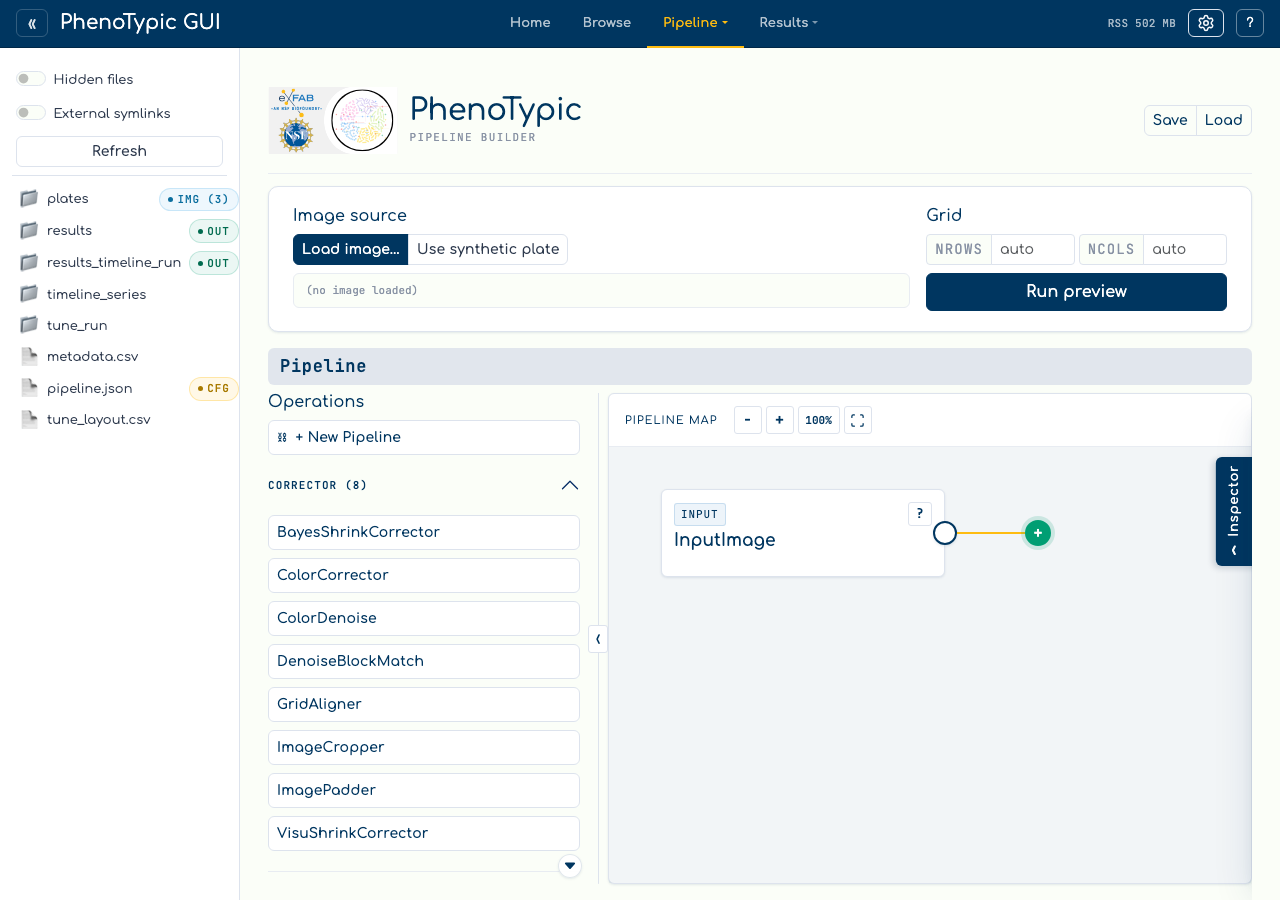
The builder has four regions:
Region |
Contents |
|---|---|
Palette (left) |
Operations grouped by role. Clicking an item inserts it at the active green target. |
Pipeline map (center) |
Fixed HTML node map with clickable image ports, parameter ports, a floating continuation port, and view-only zoom controls. |
Side loader (right) |
Selected-node scalar parameters, side-value ports, filled side values, docstring help, reorder, delete, and embedded-pipeline edit actions. |
Pipeline I/O (top right) |
|
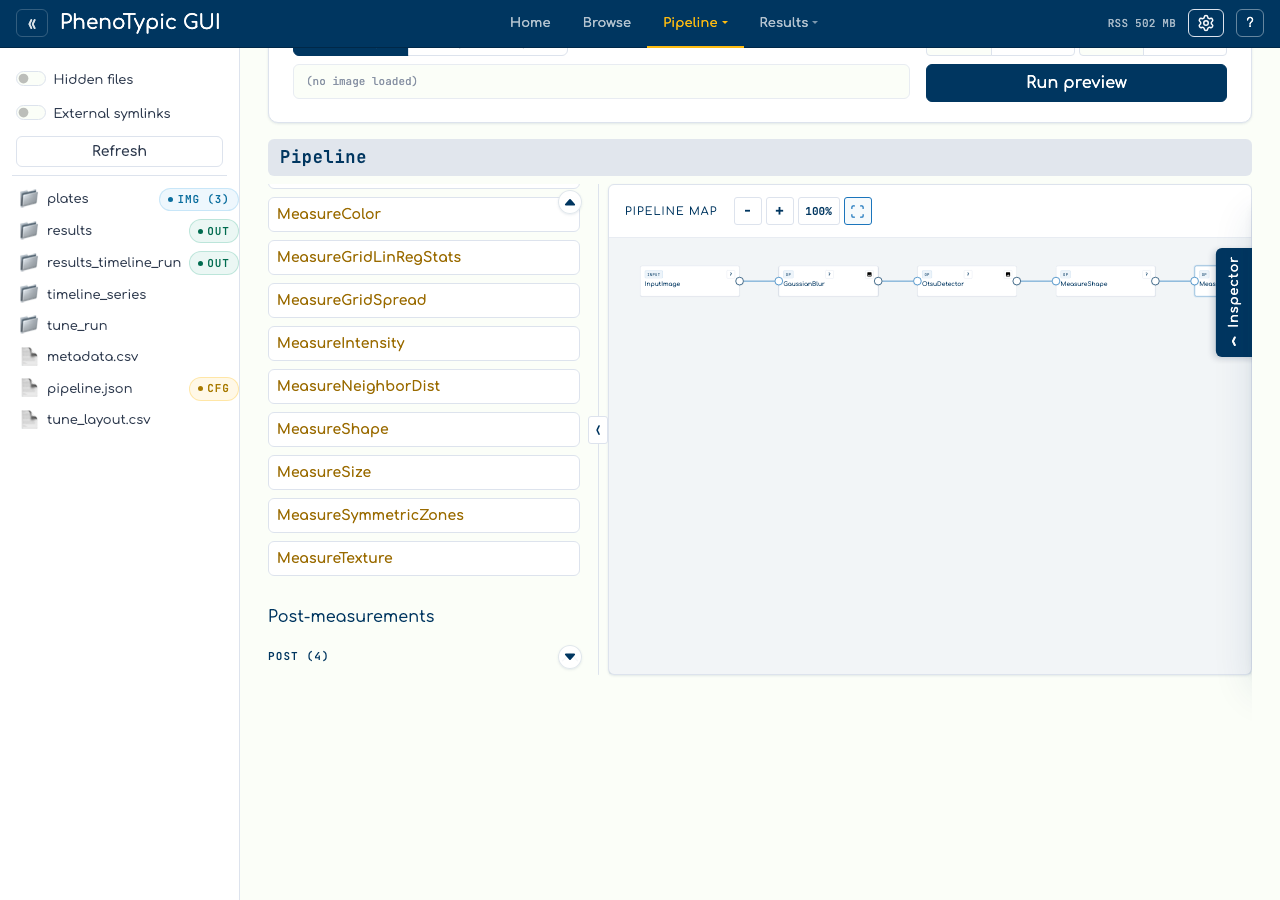
Use the map zoom controls when a chain grows wider than the viewport:
-zooms out.+zooms in.100%resets the map scale.The scan icon fits the full visible pipeline into the map viewport.
Zoom is view-only. It does not change the pipeline, does not save to JSON, and ports remain normal clickable buttons at every zoom level.
Compose a small pipeline#
The walkthrough pipeline consists of:
BlurGauss- smooths each plate before thresholding.OtsuDetector- produces the binary colony mask.MeasureShapeandMeasureSize- extract per-colony shape and area measurements.
To build it:
Start with the floating
+continuation port selected. It is the green target at the end of the map.Click
BlurGaussin theCorrectorpalette group. The node appears afterInputImage, becomes selected, and the green target moves to the new tail.Click
OtsuDetector, thenMeasureShape, thenMeasureSize. Each click appends to the current continuation target.Use the node title buttons to select a node and edit scalar parameters in the side loader.
Click
Saveonce the issue badge is clear.
Preview state#
Choose Preview here from an image-producing port to run the selected prefix.
The preview surface stays mounted while work starts and reports Running,
Complete, Error, or Stale. Editing the pipeline or starting a newer
preview retires the older request, so it cannot publish a partial image or
overwrite the newer result.
Next: Run Locally.