3.4 Browse Existing Equipment, Projects, and Runs#
Capability summary#
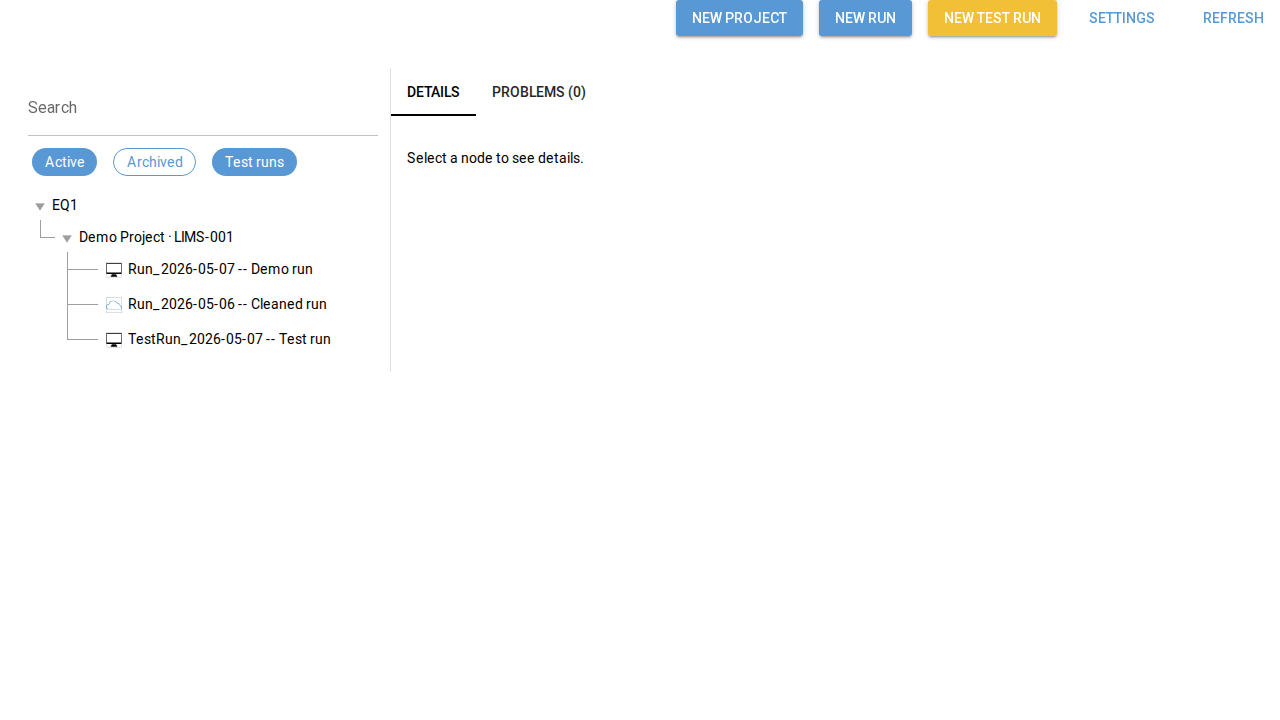
The main window reads the equipment-first hierarchy from the
configured local_root (or NAS mount), surfaces it as an expandable
tree, and supports per-row inspection via the Details and Problems
tabs. For each discovered run the application may consult
.exlab-wizard/creation.json to determine run_kind, template, and
provenance; test runs are distinguishable from experimental runs as a
data attribute. The browse view is also the primary entry point for
the creation wizards and for the Settings dialog. See section 02 §3.4
for the authoritative contract.
Walkthrough#
Open the application. The main window renders the toolbar, the left-pane equipment tree, the search box, and the Details and Problems tabs (
data-testid="main-tree",data-testid="tab-details",data-testid="tab-problems").Expand the tree. Each equipment node holds projects; each project node holds experimental runs and a
TestRuns/parent holding test runs. Sync-status icons surface per-run state.Inspect a node. Selecting a run populates the Details tab with the run’s metadata; selecting a project populates with the project’s metadata.
Screenshots#