3.4 Browse Existing Equipment, Projects, and Runs#
Capability summary#
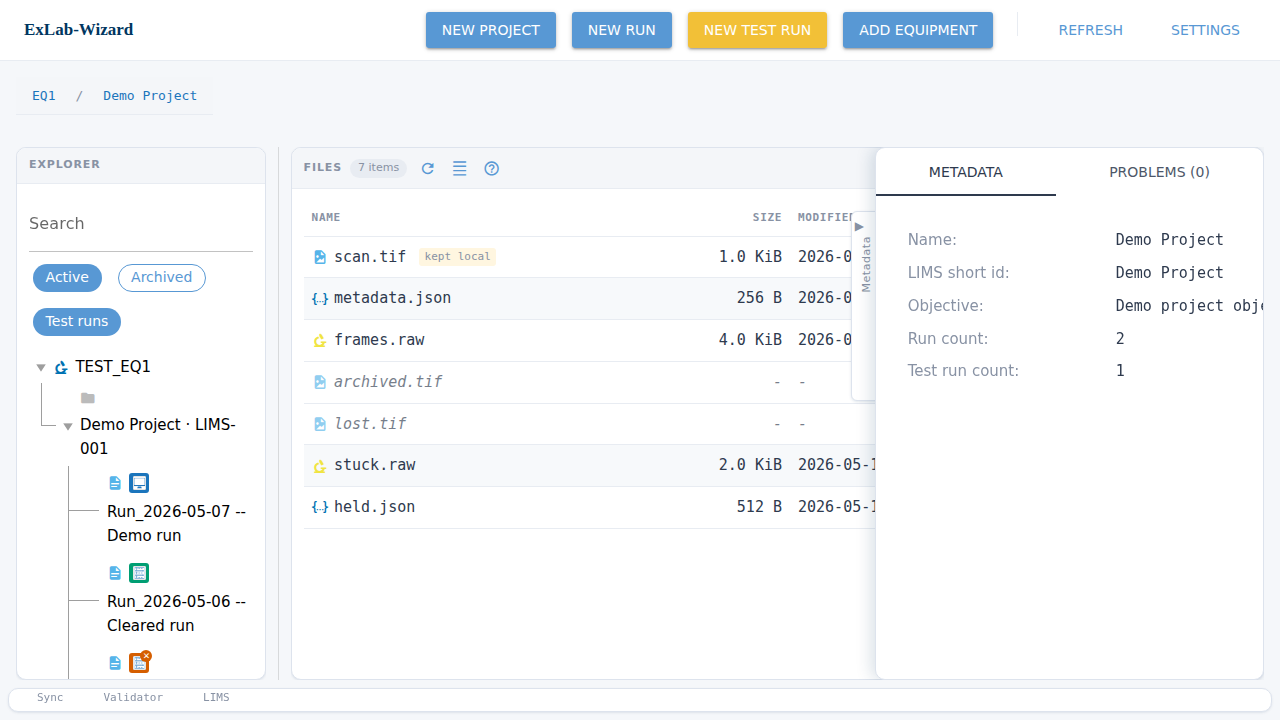
The main window is a three-region file explorer over the
equipment-first hierarchy rooted at the configured local_root (or NAS
mount). The left pane holds a search box, filter chips, and the
equipment / project / run tree; the centre pane shows the live file
list for the selected node; the right pane carries a Metadata / Problems
tab pair. A header toolbar opens the creation wizards and Settings, a
breadcrumb tracks the selected node, and a footer status bar reports
Sync / Validator / LIMS / Staging health. For each discovered run the
application consults .exlab-wizard/creation.json for run_kind,
template, and provenance; test runs are distinguishable from
experimental runs by a data attribute. The browse view is the
operator’s home base – every creation wizard and the Settings dialog
is launched from it. See section 02 §3.4 for the authoritative
contract.
Walkthrough#
Land on the main window. After setup the application opens the file explorer. The header toolbar carries New Project (
data-testid="toolbar-new-project"), New Run (data-testid="toolbar-new-run"), New Test Run (data-testid="toolbar-new-test-run"), Add Equipment (data-testid="toolbar-add-equipment"), Refresh, and Settings.Find a node in the left pane. The left pane holds a search box (
data-testid="main-search"), the Active / Archived / Test-runs filter chips, and the tree (data-testid="main-tree"). Each equipment node holds projects; each project holds experimental runs and test runs.Inspect the selection. Selecting a node fills the centre pane with the folder’s live file list and the right pane’s Metadata tab (
data-testid="tab-metadata") with the node’s metadata; the Problems tab (data-testid="tab-problems") lists validation findings for the selection. The breadcrumb (data-testid="breadcrumb") above the panes tracks the path, and each segment is clickable. The right pane can be collapsed with the toggle (data-testid="toggle-right-pane") to widen the file list.Act on a row. Right-click a tree node for context actions – owned-equipment rows offer Edit equipment and Remove (both deep-link into Settings), run rows offer Force sync, Clear verified, and View log. Right-click a file-list row for Open in OS or Copy path.
Watch the footer. The footer status bar reports the Sync, Validator, LIMS, and Staging segments; the Clear verified runs button (
data-testid="footer-clear-verified") bulk-clears runs the orchestrator has verified on the NAS.
Screenshots#