
How To: Crop and Pad Images for Batch Consistency#
Use ImageCropper to remove scanner borders and ImagePadder to make images a uniform size for batch processing.
[1]:
from phenotypic.data import load_yeast_plate_full
from phenotypic.correction import ImageCropper, ImagePadder
[2]:
plate = load_yeast_plate_full()
print(f"Original size: {plate.shape}")
plate.show()
Original size: (4012, 6016, 3)
[2]:
(<Figure size 640x480 with 1 Axes>, <Axes: >)
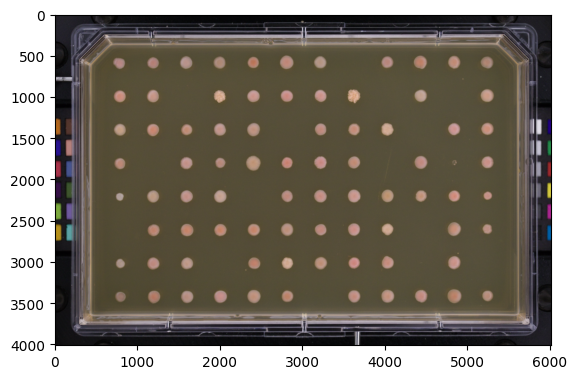
Crop Scanner Borders#
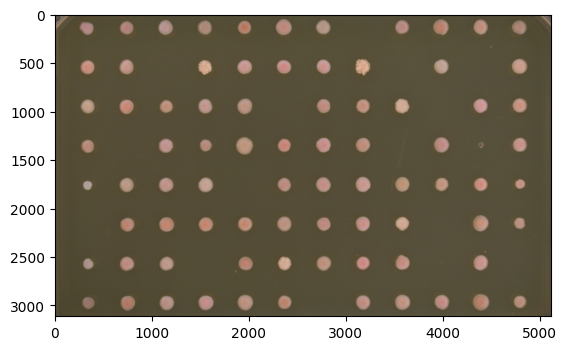
Remove unwanted borders by specifying pixels to trim from each edge.
[3]:
cropper = ImageCropper(top=450, bottom=450, left=450, right=450)
cropped = cropper.apply(plate)
print(f"Cropped size: {cropped.shape}")
cropped.show()
Cropped size: (3112, 5116, 3)
[3]:
(<Figure size 640x480 with 1 Axes>, <Axes: >)
Pad to Uniform Size#
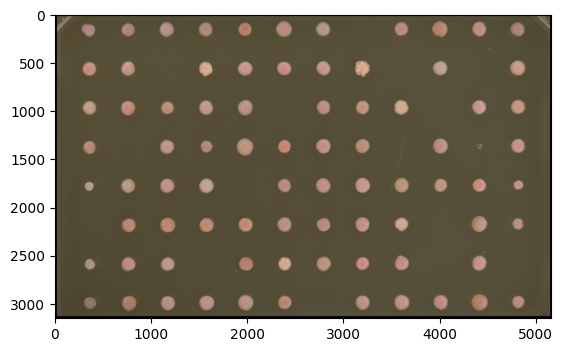
When batch-processing plates of different sizes, pad them to a consistent dimension.
[4]:
padder = ImagePadder(top=20, bottom=20, left=20, right=20, mode="constant",
                     constant_value=0)
padded = padder.apply(cropped)
print(f"Padded size: {padded.shape}")
padded.show()
Padded size: (3152, 5156, 3)
[4]:
(<Figure size 640x480 with 1 Axes>, <Axes: >)
Both operations can be included in an ImagePipeline for batch processing. Place ImageCropper first, then ImagePadder, before any detection steps.